

If you’re building a SaaS platform, automation is no longer a luxury—it’s a foundation. From onboarding users to orchestrating back-office billing and syncing data across tools, automating routine workflows saves time and reduces manual errors.
But as soon as you look for ways to automate, you’re faced with a big, confusing choice: no-code, low-code, or custom code? Each approach promises efficiency, but the right fit depends on your team, your technical skill set, and how complex your workflows really are. Picking the wrong tool can mean months lost wrangling code, or wrestling with rigid drag-and-drop interfaces that can’t do what you need.
Let’s clear the fog. In this guide, we’ll break down what no-code, low-code, and custom-coded automation really mean for SaaS teams—how they differ, when to use them, and the steps to implement each approach.
What Is No-Code vs Low-Code vs Custom Code (and Why It Matters)
No-Code Tools
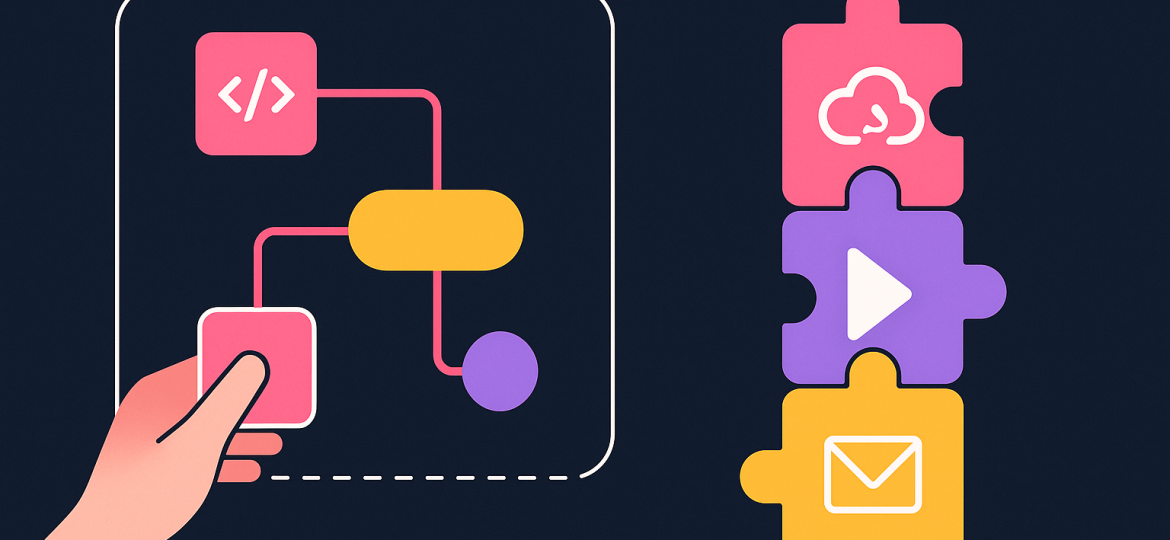
No-code platforms are built for speed. These tools offer a highly visual, template-driven builder—think flowcharts, triggers, and actions—that empower non-technical users to automate repetitive tasks without touching code. If you can describe your workflow clearly, you can generally model it in a no-code tool, using drag-and-drop logic.
- Who’s it for? Operations managers, customer success teams, or SaaS founders who want to automate tasks fast—without developer support.
- Strengths: Speed of deployment, ease-of-use, almost zero prerequisite knowledge.
- Limitations: Rigid structure, limited to pre-built connectors and actions. Custom logic or integrations can be difficult or impossible to achieve.
Example: Automatically add a new row in Google Sheets every time you receive a payment in Stripe.
Low-Code Tools
Low-code solutions bridge the gap between non-coders and developers. These platforms provide a similar visual building experience as no-code tools but allow you to extend functionality with custom scripts, logic, or API calls. The result? You get most of the drag-and-drop speed, with the option for deeper customization.
- Who’s it for? SaaS teams with technical skills—like backend developers who want to accelerate delivery, or product managers who can tweak code when needed.
- Strengths: Balance between rapid prototyping and tailored functionality. More control, supports complex workflows, and allows direct integrations via scripting or webhooks.
- Limitations: Some technical overhead. Non-developers may find advanced features challenging, and more complex automations still require maintenance.
Example: Enrich incoming signups by calling a third-party API, transforming data with custom JavaScript, and pushing results into your CRM.
Custom Code
Custom code is classic software development: you build your automation from scratch, using code, frameworks, and any libraries you want. Nothing is off-limits—integrations, business logic, data flows, triggers, and complex conditions are all possible.
- Who’s it for? Teams with strong engineering resources, custom-tailored requirements, or regulated industries with deep compliance needs.
- Strengths: Unlimited flexibility, full control over every detail, and adaptability to unique business logic.
- Limitations: Slower to build and iterate. Demands strong developer involvement for both setup and ongoing maintenance. Higher costs if requirements change frequently.
Example: Building an internal orchestration microservice that listens to multiple event streams, routes data based on business-specific conditions, and manages retries with exponential backoff.
Why the distinction matters: No-code, low-code, and custom code represent a spectrum of speed versus flexibility. Starting with no-code gives you a shortcut to get things rolling, but as your SaaS matures, you may need the customization of low-code—or the precision of pure development. The more unique your business logic and integration needs, the more likely you are to lean toward custom code. For many SaaS teams, blending these approaches unlocks productivity without bottlenecks.
How to Implement Each Approach Step-by-Step
Let’s walk through practical steps for each approach. Choosing the right one comes down to the complexity of your workflow and your team’s skillset.
1. Starting with No-Code Automation
A. Select Your Use Case
List out the processes you want to automate. For no-code, focus on clear, repetitive tasks—think “when X happens in system A, do Y in system B.”
B. Choose Your No-Code Platform
Look for a tool with integrations for your core systems (like your payment gateway, marketing tool, or CRM). Make sure the interface feels intuitive.
C. Build Your Workflow
- Use the visual builder to define triggers (e.g., “when new customer is created”).
- Drag actions to perform next steps (e.g., “send welcome email,” “add contact to Slack”).
- Use filters if the tool supports them (“only run if subscription is Premium”).
D. Test and Monitor
Trigger your workflow with test data, verify the outcome, and adjust as needed. Most no-code tools offer simple logs for troubleshooting.
No-Code Example (Workflow Diagram Style):
[Trigger: New Payment in Stripe]
      |
      v
[Action: Add Row to Google Sheet]
      |
      v
[Action: Send Notification Email]
2. Building with Low-Code Platforms
A. Map Out Your Requirements
Identify which steps in the process could benefit from custom logic or require data transformations.
B. Lay Out the Workflow Visually
Start with your platform’s builder, as you would in no-code, but prepare to “drop down” into code where necessary.
C. Add Custom Logic
Insert code blocks where visual-only logic fails. For example:
- Transform input data with JavaScript
- Call external REST APIs asynchronously
- Implement branching logic based on complex conditions
Example Code Block—Transforming Data in JavaScript:
// Map incoming webhook payload to CRM format
return {
  email: inputData.email,
  plan: inputData.subscription == "pro" ? "Premium" : "Standard",
  createdAt: new Date().toISOString()
};
D. Testing and Debugging
Test not only the visual connections but also validate your code blocks for edge cases and error handling.
3. Going Custom Code
A. Discovery and Design
Document exactly what the workflow needs to achieve. Include all input sources, outputs, edge cases, and error states.
B. Choose Your Language and Frameworks
Decide on Node.js, Python, or another stack, and select libraries for integrations (like Stripe, SendGrid, or database drivers).
C. Build the Core Automation Logic
- Set up triggers (like webhooks or polling APIs)
- Write data processing functions
- Implement error handling and retry logic
Example Node.js Snippet—Webhook Listener:
app.post('/webhook/stripe', async (req, res) => {
  const event = req.body;
  // Validate event
  // Process event data
  // Store or forward as needed
  res.status(200).json({ received: true });
});
D. Test, Deploy, and Monitor
- Set up a staging environment with test inputs
- Deploy to production with proper error tracking and alerting
- Monitor logs for exceptions or failed automations
Common Mistakes and How to Avoid Them
Mistake 1: Over-automating with No-Code Tools
No-code makes it easy to create quick automations, but it’s tempting to “stack” multiple workflows together for ever-more complex logic. The problem? You hit the platform’s limits—custom logic becomes messy, and debugging is tough.
How to Avoid:
Keep no-code workflows strictly for simple, repeated tasks. As soon as you need branching, looping, or custom integrations, consider switching to low-code or custom code.
Mistake 2: Ignoring Scalability and Maintenance
No-code and low-code platforms feel lightweight at first. But as your business grows, you can outgrow what these platforms offer. Some tools have user limits, data caps, or require upgrades for advanced features. Plus, “platform lock-in” can make migrations painful.
How to Avoid:
Before automating mission-critical workflows, verify the platform can handle your expected load. Document your workflow logic somewhere portable, in case you need to migrate later.
Mistake 3: Custom Coding for Simple Tasks
It’s tempting for engineering-driven teams to “just build it”—but small automations can soak up time better spent elsewhere.
How to Avoid:
If an existing tool does 85% of what you need and you don’t anticipate fast-changing requirements, use it. Reserve custom code for workflows truly unique to your business logic.
Mistake 4: Poor Error Handling
Whether you’re using no-code, low-code, or full code, ignoring failure paths is a common misstep. Missed notifications, silent integration failures, and data mismatches are the result.
How to Avoid:
Design every automation with logging, notifications on failure, and fallback scenarios. Test error cases intentionally.
Real-World Results and Benefits
Faster Time-to-Market
No-code and low-code platforms accelerate delivery by making automation accessible—even for non-developers. SaaS teams can deploy workflows in days or hours, not weeks.
Flexibility and Control
Low-code strikes a sweet spot for SaaS: business users can automate routine tasks, while developers extend the platform for more advanced integrations. You gain both speed and flexibility, and technical resources are reserved for complex or high-impact tasks.
Compliance and Security
In regulated environments (like finance or healthcare), low-code or custom code may be necessary to maintain control over where your workflows run and how data is handled. Some platforms offer on-premise deployment or strict compliance, protecting sensitive user information.
Integration Depth
No-code shines for simple data passing between SaaS products. But only low-code and custom code handle advanced conditions, asynchronous processing, or bespoke integrations.
Case Example:
Imagine a SaaS startup automates invoice creation and user notifications with no-code triggers. As requirements grow—like adding complex discount logic—they transition to a low-code solution, dropping in custom JavaScript to handle new conditions, without a full rewrite.
Conclusion and Next Steps
Choosing between no-code, low-code, and custom code isn’t about picking a “best” tool. It’s about matching your workflow’s complexity and your team’s strengths to the right level of abstraction.
- Use no-code to automate common, repetitive tasks and empower non-developers.
- Pick low-code when you need custom logic, integrations, or more control—without reinventing the wheel.
- Go custom code when your requirements are unique, compliance-driven, or demand maximal flexibility.
As your SaaS evolves, blending these approaches gives you the fastest path to robust, maintainable automation. Start simple, evolve as needs grow, and always document your automation logic.
Ready to launch production-grade automations in minutes?
If you want a ready-made solution, check out our n8n workflow templates — production-ready and deployable in under an hour.