

Introduction
Video content is everywhere—on websites, social feeds, pitch decks, ecommerce pages, and onboarding flows. But creating compelling videos with quality visuals and realistic narration is notoriously time-consuming. Most automated “text-to-video” tools promise a frictionless pipeline, but bottlenecks remain: tedious scriptwriting, voiceover coordination, media asset organization, and manual editing.
Let’s say you run a product-led SaaS. You want to generate explainers, product updates, or even personalized video summaries for customer onboarding. The catch: You don’t have a video editing team, you need high quality at scale, and you want to change scripts or visuals programmatically. This is exactly where a purpose-built, automated n8n workflow shines.
We’re going to break down how you can go from a single text prompt all the way to a fully rendered MP4—image scenes, synced AI voiceover, and all—using n8n, generative AI models for both script and media, and FFmpeg for assembly. This isn’t just a demo loop; it’s a production-ready approach that you can adapt and scale.
What is Automated AI Video Creation with n8n and Why It Matters
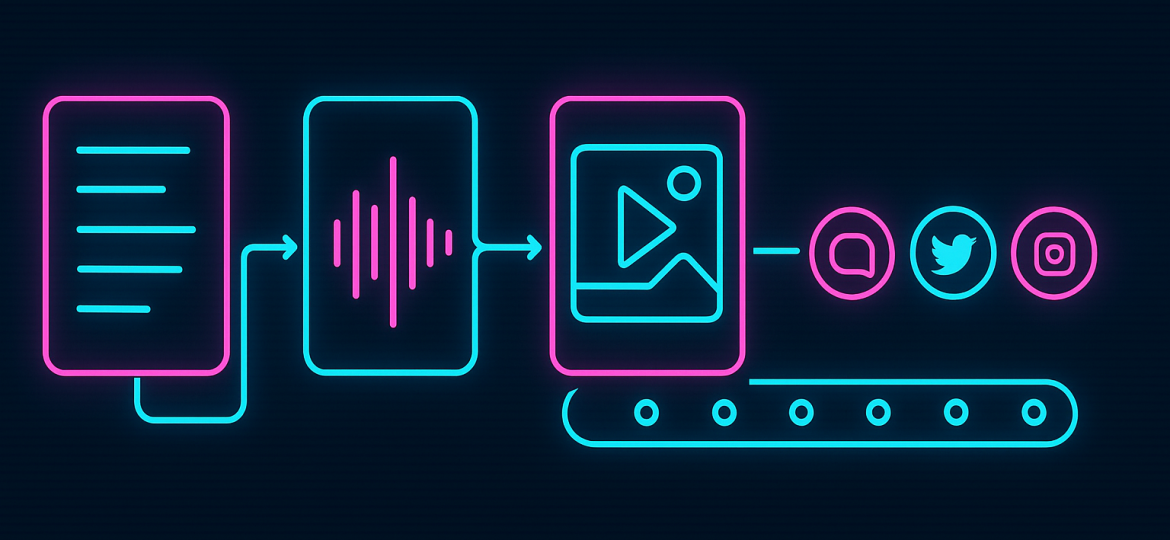
At its core, automated AI video creation is an end-to-end pipeline—starting from a simple prompt or idea and ending with a rendered, publish-ready video. The workflow typically involves:
- Generating scripts and scene prompts using large language models (LLMs)
- Creating visual assets (images, video scenes) with generative AI image or video APIs
- Synthesizing realistic voiceovers from the script
- Stitching the assets together into a final video, often with FFmpeg or similar tools
- Optionally, auto-publishing to channels like YouTube or a CMS
n8n is the glue. It orchestrates the chain: managing triggers, handling data transfer between nodes, coordinating parallel tasks like multilingual voiceover or image generation, and calling APIs in the right order.
- Speed and iteration: You can go from idea to draft video in minutes.
- Consistency: Every video adheres to your template and narrative structure.
- Customization: Swap in new prompts, product data, or scripts and automatically generate dozens of distinct videos.
- Scalability: Spin up multiple videos concurrently—ideal for programmatic use cases, multi-language support, or mass personalization.
For agencies, SaaS teams, publishers and e-commerce operators, this means less time spent stitching together components manually and more time focusing on content strategy, optimization, and distribution.
How to Implement Automated AI Video Creation in n8n (Step by Step)
Here’s a practical walkthrough. This workflow can be adapted, but the fundamentals remain the same.
1. Trigger and Collect Your Prompt
Start with a trigger. This could be a schedule (e.g., daily), a webhook (from your app or CMS), or fetching rows from a spreadsheet/database with new video ideas.
Example:
{
  "trigger": "schedule",
  "interval": "daily",
  "source": "Google Sheets"
}
2. Generate a Script (and Scene Prompts)
Feed your prompt into an LLM node—like OpenAI or similar—to generate the full script and, optionally, scene-by-scene breakdowns.
Workflow node:
- LLM Node: Receives the topic, returns:
script: Narration textscene_prompts: Array of image/scene descriptions
n8n config example:
Input: "How does our product's AI recommendation engine work?"
Output: {
  script: "Our recommendation engine uses real-time data...",
  scene_prompts: [
    "An abstract illustration of data flowing between nodes",
    "A user interface displaying recommended items",
    ...
  ]
}
3. Create Visual Assets
Each scene prompt is sent to an image or video generation API (such as via Hugging Face, PiAPI, or custom models). The node loops through scene_prompts, calling the chosen API and accumulating the resulting media files.
Example logic:
- Loop Node: For each
scene_prompt: - HTTP Request Node to image generator
- Collect image URLs or file paths
4. Synthesize the Voice-Over
Feed the script text to a text-to-speech API supporting natural-sounding AI voices. Return the path or URL to the generated audio file.
Node example:
- HTTP Request Node: Send
scriptto TTS API - Receive WAV/MP3/OGG output
Script sample:
“Our recommendation engine analyzes user behaviors…”
TTS output: voiceover.mp3
5. Stitch It All Together with FFmpeg
Once you have all your images and the voiceover, use an n8n Execute Command node (or a dedicated FFmpeg node if available) to assemble everything into a video sequence.
Key FFmpeg tasks:
- Convert static images into a video/timed slideshow
- Synchronize image display timing with voiceover segments
- Merge the audio and video streams
Example FFmpeg command (simplified):
ffmpeg -framerate 1 \
  -i scene_%03d.jpg \
  -i voiceover.mp3 \
  -c:v libx264 -c:a aac \
  -shortest output.mp4
Adapt the command to your image/scene count and desired transitions. For multiple scenes, ensure each image’s duration matches the script segment.
6. (Optional) Publish or Store the Video
Once rendered, your workflow can upload the video to cloud storage, send it to a CMS, push to a social platform, or simply email a link.
Node: HTTP Request, Cloud API, YouTube publish, etc.
Visual Summary:
[Trigger] → [LLM Script & Prompts] → [Image Generator] → [TTS Voice Over] → [FFmpeg Assemble] → [Publish/Export]
This modular structure makes enhancements—like intro/outro insertion, subtitle generation, support for multi-language versions—straightforward to add.
Common Mistakes and How to Avoid Them
1. Loose Sync Between Visuals and Script
Problem: If scene timing isn’t mapped to narration segments, visuals and voiceover feel disconnected.
Solution: Pre-calculate the length of each script section, and programmatically assign each image its timing in FFmpeg. For word-level or sentence-level control, consider TTS APIs that return timestamps.
2. API Rate-Limits or Quota Exhaustion
Problem: Generative APIs (LLMs, image synth, TTS) often enforce limits.
Solution: Add error handling and retry logic in n8n nodes. Throttle requests and monitor usage so your workflow gracefully handles failures or pausing when limits are hit.
3. Low-quality or Off-brand Visuals
Problem: Out-of-the-box prompts can sometimes generate inconsistent or low-relevance images.
Solution: Post-process AI prompts to include style, color scheme, or context from your brand guidelines. Consider chaining LLM nodes—one drafts the creative text, another “reviewer” node reformulates for clarity and consistency.
4. Audio/Video Format Mismatches
Problem: FFmpeg expects consistent frame rates, audio sample rates, and file paths. Mismatches break the assembly step.
Solution: Normalize formats in n8n (rename files, enforce codec requirements) before sending them to FFmpeg. Use helper utilities to inspect file properties if needed.
5. Missing Metadata or Context in Workflow
Problem: Final videos lack appropriate description, captions, or titles for platform SEO.
Solution: Generate or fetch video metadata as part of the workflow, and carry it forward to the publishing automation step.
Trade-offs and When Not to Use This Approach
Automated AI video creation is powerful, but not always the right fit.
Where It Excels
- Programmatic, template-driven content: FAQs, explainer series, onboarding steps, news summaries, product showcases.
- Scale with variations: Multilingual outputs, personalization by segment, daily batch creation.
- Rapid prototyping or MVPs: Quickly test video content ideas, iterate on structure and script.
Where It Falls Short
- Highly detailed or human-acted stories: Dramatizations, nuanced interviews, or narratives requiring emotion and timing often outpace what TTS and image generators can produce.
- Real-time video effects or complex editing: Advanced editing, keyframe animation, or sophisticated transitions are hard to automate reliably.
- Strict visual brand requirements: If you need pixel-perfect output or strict graphical templates, manual review and post-processing may still be required.
There’s also a maintenance factor: AI models, API endpoints, and even FFmpeg switches evolve. Workflows may periodically require updates to remain compatible and effective.
Conclusion and Next Steps
Automating video creation from prompt-to-rendered file can move from “nice idea” to “production process” with the right n8n workflow. With AI script and asset generation, programmatic voice synthesis, and FFmpeg assembly, you can turn simple prompts or data sources into polished video output—cutting out bottlenecks in scale, turnaround time, and consistency.
To move forward:
- Map your use case: Where could automated video pipelines save your team time or unlock new content formats?
- Prototype your n8n workflow, testing the flow from script to assets to audio to render.
- Plan for error handling and periodic updates—to ensure quality and reliability as the AI and video landscape shifts.
With a step-by-step approach and focus on modular workflow design, automated video creation isn’t just a one-off experiment—it’s a sustainable asset in your content stack.
Five production video pipelines in one package
The Faceless Video Automation Suite includes five n8n workflows — AI Shorts, daily niche videos, 3D character stories, cinematic AI animation and 10-minute narrated documentaries.